
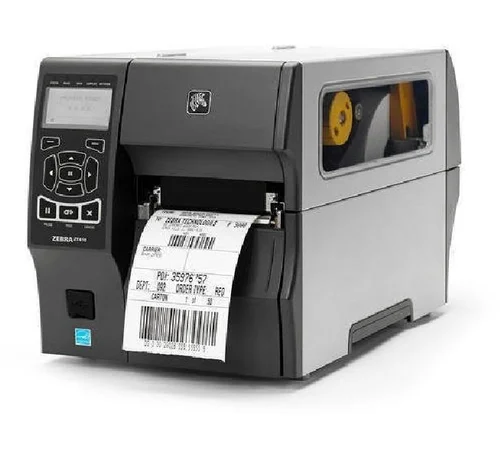
How to Set Up and Calibrate Your New Label Printer for Error-Free PrintingA label printer is one of the most important tools in modern business operations. Whether you’re printing barcode labels, shipping labels, product labels, asset tags, or inventory labels, proper printer setup and calibration are essential for achieving consistent, high-quality results.
Unfortunately, many businesses rush through the installation process, leading to common issues such as misaligned labels, poor print quality, barcode scanning failures, wasted media, and unnecessary downtime.
The good news is that most of these problems can be avoided with proper setup and calibration.
In this guide, we’ll walk you through the complete process of setting up and calibrating your new label printer for accurate, error-free printing and long-term reliability.
Why Proper Label Printer Setup Matters
A correctly configured label printer delivers:
- Sharp and readable barcode labels
- Consistent print positioning
- Reduced label waste
- Improved scanner readability
- Longer printhead life
- Enhanced operational efficiency
On the other hand, improper setup can result in costly printing errors that affect inventory management, logistics, manufacturing, and retail operations.
Understanding How a Label Printer Works
Before beginning setup, it’s helpful to understand the key components of a label printer.
Printhead
The printhead transfers the image onto the label material.
Media Sensors
Sensors detect label gaps, black marks, or continuous media.
Platen Roller
The roller feeds labels through the printer.
Ribbon System (Thermal Transfer Printers)
The ribbon transfers ink onto the label surface.
Control Panel
Allows configuration of printer settings and calibration functions.
Understanding these components makes troubleshooting much easier.
Step 1: Choose the Right Location
The environment in which your label printer operates can significantly impact performance.
Best Practices
- Place the printer on a stable surface.
- Avoid excessive dust and debris.
- Keep away from direct sunlight.
- Maintain recommended temperature levels.
- Ensure adequate ventilation.
A clean operating environment helps extend the life of your printer and improves print quality.
Step 2: Unpack and Inspect the Printer
Before powering on the printer:
Check for:
- Shipping damage
- Loose components
- Missing accessories
- Damaged cables
Most industrial label printers include:
- Power cable
- USB or network cable
- User documentation
- Media guides
- Ribbon spindles (if applicable)
Verify that all components are present before installation.
Step 3: Install the Label Media
Loading labels correctly is critical for proper printer operation.
Label Loading Procedure
- Open the printer cover.
- Adjust the media guides.
- Insert the label roll.
- Align labels correctly.
- Feed labels through the print path.
- Secure the guides without over-tightening.
Improper loading often leads to skewed printing and calibration issues.
Step 4: Install the Ribbon (Thermal Transfer Printers)
If you’re using a thermal transfer label printer:
Installation Steps
- Open the printer.
- Install the ribbon supply roll.
- Attach the ribbon to the take-up core.
- Remove wrinkles and slack.
- Close the printer cover.
Ensure the ribbon matches the label material for optimal durability and print quality.
Step 5: Connect the Printer
Most modern label printers support multiple connectivity options.
Common Connection Types
- USB
- Ethernet
- Wi-Fi
- Bluetooth
- Serial connections
Select the option that best fits your operational environment.
For warehouse and manufacturing facilities, network connectivity often provides the greatest flexibility.
Step 6: Install Printer Drivers
The printer driver acts as the communication bridge between your computer and the label printer.
Installation Tips
- Download the latest drivers from the manufacturer.
- Verify compatibility with your operating system.
- Restart the computer after installation if required.
- Confirm printer recognition before printing.
Outdated drivers can cause communication and printing issues.
Step 7: Configure Label Settings
Before printing, configure the printer to match your label stock.
Important Settings
Label Width
Must match the actual label dimensions.
Label Height
Ensures proper positioning and spacing.
Media Type
Choose:
- Gap labels
- Black mark labels
- Continuous labels
Print Speed
Balance speed with print quality.
Print Darkness
Adjust for optimal barcode readability.
Accurate settings prevent printing errors and wasted labels.
Step 8: Perform Initial Calibration
Calibration allows the printer to identify label dimensions and gaps accurately.
This is one of the most important steps in the setup process.
Why Calibration Matters
Calibration helps the printer:
- Detect label gaps
- Identify black marks
- Position labels correctly
- Prevent skipped labels
- Improve print consistency
Basic Calibration Process
- Load label media.
- Access printer settings.
- Select media calibration.
- Run automatic calibration.
- Allow the printer to measure label dimensions.
Most industrial label printers offer automated calibration functions that simplify this process.
Step 9: Print a Test Label
After calibration, print a sample label.
Check for:
- Print alignment
- Barcode clarity
- Text readability
- Image quality
- Label positioning
This step verifies that the setup process was completed correctly.
Step 10: Verify Barcode Quality
For businesses using barcode labels, testing barcode readability is essential.
Inspect For
- Sharp edges
- Proper contrast
- Consistent line thickness
- No missing elements
Test With
- Handheld barcode scanners
- Mobile scanning devices
- Barcode verification systems
A barcode that looks acceptable may still fail in real-world scanning environments.
Common Label Printer Calibration Problems
Even after installation, calibration issues can occasionally occur.
Labels Skipping
Possible Causes:
- Incorrect sensor settings
- Dirty sensors
- Improper calibration
Misaligned Printing
Possible Causes:
- Incorrect label dimensions
- Media guide issues
- Sensor configuration errors
Multiple Labels Feeding
Possible Causes:
- Gap detection failure
- Calibration errors
- Sensor contamination
Regular maintenance helps minimize these issues.
Maintaining Your Label Printer for Long-Term Performance
Routine maintenance keeps your printer operating efficiently.
Clean the Printhead
Remove residue using approved cleaning supplies.
Inspect Rollers
Check for wear and debris accumulation.
Clean Sensors
Dust and adhesive buildup can affect label detection.
Update Firmware
Manufacturers often release performance improvements and bug fixes.
Replace Worn Components
Preventative maintenance reduces downtime and extends equipment lifespan.
Best Practices for Error-Free Label Printing
To maximize label printer performance:
- Use high-quality label stock.
- Match ribbon and label materials.
- Perform regular calibration.
- Clean the printer routinely.
- Verify barcode quality.
- Store labels properly.
- Use manufacturer-recommended supplies.
These practices improve print consistency and reduce operational disruptions.

How Labels & Labeling Supports Your Label Printing Needs
At Labels & Labeling, we provide complete labeling solutions designed to help businesses achieve reliable and efficient printing operations.
Our solutions include:
- Industrial label printers
- Barcode label printers
- Thermal transfer printers
- High-quality label materials
- Thermal ribbons
- Barcode scanners
- Technical support and consultation
Our experienced team helps businesses select, configure, and maintain the right label printing solution for their unique operational requirements.
Conclusion
A properly configured label printer is the foundation of reliable barcode and labeling operations. Taking the time to correctly install, calibrate, and maintain your printer can dramatically improve print quality, reduce label waste, and increase productivity.
Whether you’re printing shipping labels, inventory labels, product labels, or barcode labels, following these setup and calibration best practices will help ensure consistent and error-free results.
For expert guidance, premium label printers, and complete labeling solutions, trust Labels & Labeling to support your business every step of the way.
Frequently Asked Questions
Why is label printer calibration important?
Calibration allows the printer to detect label dimensions accurately, ensuring proper label positioning and reducing printing errors.
How often should I calibrate my label printer?
Calibration is recommended whenever you change label stock, ribbon type, or experience alignment issues.
Why are my labels printing off-center?
Incorrect label dimensions, sensor settings, or improper calibration are common causes of off-center printing.
Can poor calibration affect barcode scanning?
Yes. Misaligned or poorly printed barcodes may fail to scan properly, causing operational inefficiencies.
What is the difference between direct thermal and thermal transfer printers?
Direct thermal printers print directly onto heat-sensitive media, while thermal transfer printers use ribbons to create more durable labels.
A label printer is one of the most important tools in modern business operations. Whether you’re printing barcode labels, shipping labels, product labels, asset tags, or inventory labels, proper printer setup and calibration are essential for achieving consistent, high-quality results.
Unfortunately, many businesses rush through the installation process, leading to common issues such as misaligned labels, poor print quality, barcode scanning failures, wasted media, and unnecessary downtime.
The good news is that most of these problems can be avoided with proper setup and calibration.
In this guide, we’ll walk you through the complete process of setting up and calibrating your new label printer for accurate, error-free printing and long-term reliability.
Why Proper Label Printer Setup Matters
A correctly configured label printer delivers:
- Sharp and readable barcode labels
- Consistent print positioning
- Reduced label waste
- Improved scanner readability
- Longer printhead life
- Enhanced operational efficiency
On the other hand, improper setup can result in costly printing errors that affect inventory management, logistics, manufacturing, and retail operations.
Understanding How a Label Printer Works
Before beginning setup, it’s helpful to understand the key components of a label printer.
Printhead
The printhead transfers the image onto the label material.
Media Sensors
Sensors detect label gaps, black marks, or continuous media.
Platen Roller
The roller feeds labels through the printer.
Ribbon System (Thermal Transfer Printers)
The ribbon transfers ink onto the label surface.
Control Panel
Allows configuration of printer settings and calibration functions.
Understanding these components makes troubleshooting much easier.
Step 1: Choose the Right Location
The environment in which your label printer operates can significantly impact performance.
Best Practices
- Place the printer on a stable surface.
- Avoid excessive dust and debris.
- Keep away from direct sunlight.
- Maintain recommended temperature levels.
- Ensure adequate ventilation.
A clean operating environment helps extend the life of your printer and improves print quality.
Step 2: Unpack and Inspect the Printer
Before powering on the printer:
Check for:
- Shipping damage
- Loose components
- Missing accessories
- Damaged cables
Most industrial label printers include:
- Power cable
- USB or network cable
- User documentation
- Media guides
- Ribbon spindles (if applicable)
Verify that all components are present before installation.
Step 3: Install the Label Media
Loading labels correctly is critical for proper printer operation.
Label Loading Procedure
- Open the printer cover.
- Adjust the media guides.
- Insert the label roll.
- Align labels correctly.
- Feed labels through the print path.
- Secure the guides without over-tightening.
Improper loading often leads to skewed printing and calibration issues.
Step 4: Install the Ribbon (Thermal Transfer Printers)
If you’re using a thermal transfer label printer:
Installation Steps
- Open the printer.
- Install the ribbon supply roll.
- Attach the ribbon to the take-up core.
- Remove wrinkles and slack.
- Close the printer cover.
Ensure the ribbon matches the label material for optimal durability and print quality.
Step 5: Connect the Printer
Most modern label printers support multiple connectivity options.
Common Connection Types
- USB
- Ethernet
- Wi-Fi
- Bluetooth
- Serial connections
Select the option that best fits your operational environment.
For warehouse and manufacturing facilities, network connectivity often provides the greatest flexibility.
Step 6: Install Printer Drivers
The printer driver acts as the communication bridge between your computer and the label printer.
Installation Tips
- Download the latest drivers from the manufacturer.
- Verify compatibility with your operating system.
- Restart the computer after installation if required.
- Confirm printer recognition before printing.
Outdated drivers can cause communication and printing issues.
Step 7: Configure Label Settings
Before printing, configure the printer to match your label stock.
Important Settings
Label Width
Must match the actual label dimensions.
Label Height
Ensures proper positioning and spacing.
Media Type
Choose:
- Gap labels
- Black mark labels
- Continuous labels
Print Speed
Balance speed with print quality.
Print Darkness
Adjust for optimal barcode readability.
Accurate settings prevent printing errors and wasted labels.
Step 8: Perform Initial Calibration
Calibration allows the printer to identify label dimensions and gaps accurately.
This is one of the most important steps in the setup process.
Why Calibration Matters
Calibration helps the printer:
- Detect label gaps
- Identify black marks
- Position labels correctly
- Prevent skipped labels
- Improve print consistency
Basic Calibration Process
- Load label media.
- Access printer settings.
- Select media calibration.
- Run automatic calibration.
- Allow the printer to measure label dimensions.
Most industrial label printers offer automated calibration functions that simplify this process.
Step 9: Print a Test Label
After calibration, print a sample label.
Check for:
- Print alignment
- Barcode clarity
- Text readability
- Image quality
- Label positioning
This step verifies that the setup process was completed correctly.
Step 10: Verify Barcode Quality
For businesses using barcode labels, testing barcode readability is essential.
Inspect For
- Sharp edges
- Proper contrast
- Consistent line thickness
- No missing elements
Test With
- Handheld barcode scanners
- Mobile scanning devices
- Barcode verification systems
A barcode that looks acceptable may still fail in real-world scanning environments.
Common Label Printer Calibration Problems
Even after installation, calibration issues can occasionally occur.
Labels Skipping
Possible Causes:
- Incorrect sensor settings
- Dirty sensors
- Improper calibration
Misaligned Printing
Possible Causes:
- Incorrect label dimensions
- Media guide issues
- Sensor configuration errors
Multiple Labels Feeding
Possible Causes:
- Gap detection failure
- Calibration errors
- Sensor contamination
Regular maintenance helps minimize these issues.
Maintaining Your Label Printer for Long-Term Performance
Routine maintenance keeps your printer operating efficiently.
Clean the Printhead
Remove residue using approved cleaning supplies.
Inspect Rollers
Check for wear and debris accumulation.
Clean Sensors
Dust and adhesive buildup can affect label detection.
Update Firmware
Manufacturers often release performance improvements and bug fixes.
Replace Worn Components
Preventative maintenance reduces downtime and extends equipment lifespan.
Best Practices for Error-Free Label Printing
To maximize label printer performance:
- Use high-quality label stock.
- Match ribbon and label materials.
- Perform regular calibration.
- Clean the printer routinely.
- Verify barcode quality.
- Store labels properly.
- Use manufacturer-recommended supplies.
These practices improve print consistency and reduce operational disruptions.
How Labels & Labeling Supports Your Label Printing Needs
At Labels & Labeling, we provide complete labeling solutions designed to help businesses achieve reliable and efficient printing operations.
Our solutions include:
- Industrial label printers
- Barcode label printers
- Thermal transfer printers
- High-quality label materials
- Thermal ribbons
- Barcode scanners
- Technical support and consultation
Our experienced team helps businesses select, configure, and maintain the right label printing solution for their unique operational requirements.
Conclusion
A properly configured label printer is the foundation of reliable barcode and labeling operations. Taking the time to correctly install, calibrate, and maintain your printer can dramatically improve print quality, reduce label waste, and increase productivity.
Whether you’re printing shipping labels, inventory labels, product labels, or barcode labels, following these setup and calibration best practices will help ensure consistent and error-free results.
For expert guidance, premium label printers, and complete labeling solutions, trust Labels & Labeling to support your business every step of the way.
Frequently Asked Questions
Why is label printer calibration important?
Calibration allows the printer to detect label dimensions accurately, ensuring proper label positioning and reducing printing errors.
How often should I calibrate my label printer?
Calibration is recommended whenever you change label stock, ribbon type, or experience alignment issues.
Why are my labels printing off-center?
Incorrect label dimensions, sensor settings, or improper calibration are common causes of off-center printing.
Can poor calibration affect barcode scanning?
Yes. Misaligned or poorly printed barcodes may fail to scan properly, causing operational inefficiencies.
What is the difference between direct thermal and thermal transfer printers?
Direct thermal printers print directly onto heat-sensitive media, while thermal transfer printers use ribbons to create more durable labels.