
How to Program and Troubleshoot Your Zebra Barcode Scanner for Seamless ERP IntegrationIn today’s fast-paced business environment, accurate data collection is essential for maintaining efficient operations. Whether managing inventory, tracking assets, processing shipments, or monitoring production workflows, businesses depend heavily on barcode scanning technology to eliminate manual errors and improve productivity.
A Zebra barcode scanner is one of the most trusted data capture solutions used across industries worldwide. Known for reliability, durability, and advanced scanning capabilities, Zebra scanners help organizations streamline operations and improve visibility throughout the supply chain.
However, achieving maximum value from a Zebra barcode scanner requires proper setup, programming, and integration with your Enterprise Resource Planning (ERP) system. Incorrect configuration can lead to scanning errors, communication failures, inaccurate inventory records, and operational disruptions.
This guide explains how to program, configure, and troubleshoot your Zebra barcode scanner for seamless ERP integration and optimal performance.
Why ERP Integration Matters
ERP systems serve as the central hub for managing business data.
Departments such as:
- Inventory Management
- Warehousing
- Procurement
- Manufacturing
- Logistics
- Finance
- Customer Service
all rely on accurate and real-time information.
When a Zebra barcode scanner integrates successfully with an ERP system, businesses benefit from:
- Faster data entry
- Improved inventory accuracy
- Reduced human error
- Real-time inventory visibility
- Increased workforce productivity
- Better decision-making
Effective scanner integration creates a more connected and efficient operation.
Understanding Zebra Barcode Scanner Capabilities
Modern Zebra barcode scanners support a wide range of barcode symbologies and communication methods.
Common Features
- 1D barcode scanning
- 2D barcode scanning
- QR code reading
- Wireless connectivity
- Bluetooth communication
- USB integration
- Rugged industrial construction
- High-speed scanning
- Long-range barcode reading
These capabilities make Zebra scanners ideal for retail, warehousing, healthcare, manufacturing, and logistics environments.
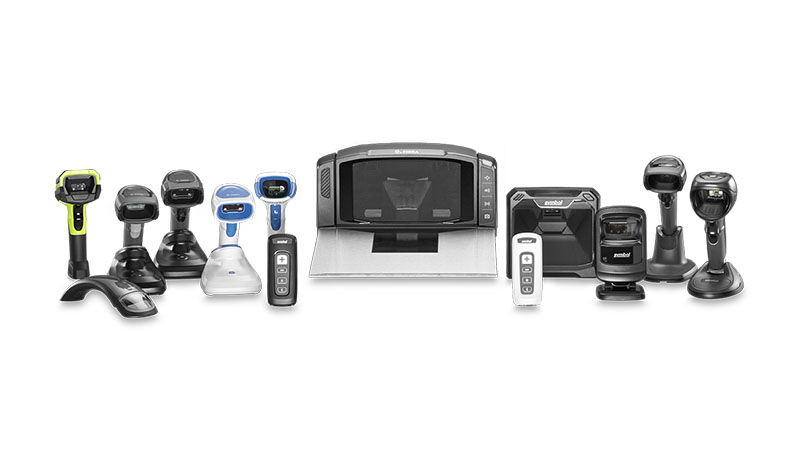
Step 1: Identify Your Zebra Barcode Scanner Model
Before configuration begins, identify the scanner model being used.
Different Zebra barcode scanner models support varying features and setup procedures.
Common scanner categories include:
Handheld Scanners
Ideal for retail and warehouse applications.
Cordless Scanners
Provide mobility and flexibility.
Industrial Scanners
Designed for demanding manufacturing and logistics environments.
Presentation Scanners
Commonly used at retail checkout counters.
Knowing your model ensures the correct programming and configuration process.
Step 2: Connect the Scanner to Your System
Most Zebra barcode scanners support multiple connection methods.
USB Connection
The most common option for ERP integration.
Benefits include:
- Simple setup
- Plug-and-play functionality
- Reliable communication
Bluetooth Connection
Suitable for mobile environments requiring greater flexibility.
Serial Connection
Often used in industrial and legacy systems.
Network-Based Integration
Common in larger enterprise environments.
Select the connection method that best supports your operational requirements.
Step 3: Configure Communication Settings
Proper communication settings are essential for successful ERP integration.
Depending on the ERP platform, configuration may involve:
Keyboard Wedge Mode
Scanned data is entered as if typed from a keyboard.
Advantages:
- Easy implementation
- Minimal software changes
Serial Emulation
Useful for specialized applications.
USB COM Port Mode
Provides advanced communication capabilities.
HID Interface
Commonly used for standard desktop environments.
Ensure your ERP system supports the selected communication method.
Step 4: Program Barcode Symbologies
Not all businesses use the same barcode formats.
A Zebra barcode scanner can be configured to recognize specific barcode types.
Common Symbologies
- Code 128
- Code 39
- EAN
- UPC
- QR Codes
- Data Matrix
- PDF417
Enabling only the required symbologies can improve scanning speed and reduce errors.
Best Practice
Disable unused barcode formats whenever possible.
This minimizes accidental scans and improves operational efficiency.
Step 5: Configure Data Formatting
ERP systems often require barcode data to follow a specific format.
Programming options may include:
Prefixes
Characters added before scanned data.
Suffixes
Characters added after scanned data.
Tab Commands
Automatically move to the next field.
Enter Commands
Submit information immediately after scanning.
Proper formatting ensures seamless data transfer between the scanner and ERP software.
Step 6: Test ERP Integration
Once programming is complete, perform comprehensive testing.
Verify
- Data accuracy
- Field population
- Barcode recognition
- ERP record updates
- Workflow compatibility
Testing should be conducted across all operational processes before deployment.
Common Zebra Barcode Scanner Problems
Even properly configured scanners occasionally experience issues.
Understanding common problems helps reduce downtime.
Problem 1: Scanner Not Reading Barcodes
Possible Causes
- Dirty scan window
- Damaged barcode labels
- Unsupported barcode format
- Incorrect scanner settings
Solutions
- Clean the scanner lens.
- Verify barcode quality.
- Enable the correct barcode symbology.
- Update scanner configuration.
Problem 2: Data Not Appearing in ERP
Possible Causes
- Communication setting mismatch
- Software configuration issues
- Driver problems
Solutions
- Verify connection settings.
- Test scanner functionality in a text editor.
- Confirm ERP input field compatibility.
- Reinstall required drivers.
Problem 3: Incorrect Data Formatting
Possible Causes
- Missing prefixes or suffixes
- Incorrect scanner programming
- ERP field mapping issues
Solutions
- Review scanner configuration.
- Test formatting rules.
- Verify ERP data requirements.
Problem 4: Slow Scanning Performance
Possible Causes
- Excessive enabled symbologies
- Poor barcode quality
- Outdated firmware
Solutions
- Disable unnecessary barcode formats.
- Improve barcode label quality.
- Update firmware.
Problem 5: Wireless Connectivity Issues
Possible Causes
- Bluetooth interference
- Pairing failures
- Battery issues
Solutions
- Re-pair the scanner.
- Move away from interference sources.
- Replace aging batteries.

Best Practices for Zebra Barcode Scanner Performance
To maximize performance:
Maintain Scanner Cleanliness
Regularly clean scanner windows and charging contacts.
Verify Barcode Quality
Poor barcode labels can significantly reduce scan rates.
Train Employees
Proper scanning techniques improve productivity.
Update Firmware
Keep devices updated for optimal performance.
Monitor Battery Health
Replace batteries when performance declines.
Conduct Routine Testing
Periodic testing helps identify issues before they affect operations.
Security Considerations for ERP Integration
Barcode scanners are increasingly connected to enterprise networks.
To maintain security:
- Restrict unauthorized device access.
- Update firmware regularly.
- Follow IT security policies.
- Monitor device activity.
- Secure wireless communications.
Strong security practices protect valuable business data.
Benefits of Proper Zebra Barcode Scanner Integration
Businesses that successfully integrate Zebra barcode scanners with ERP systems often experience:
- Faster transaction processing
- Improved inventory accuracy
- Reduced manual data entry
- Better asset visibility
- Lower operational costs
- Enhanced customer satisfaction
The return on investment can be significant when implemented correctly.
How Labels & Labeling Supports Barcode Scanning Solutions
At Labels & Labeling, we provide complete barcoding and data capture solutions tailored to the needs of modern businesses.
Our solutions include:
- Zebra barcode scanners
- Industrial barcode scanners
- Barcode labels
- Label printers
- ERP-compatible scanning solutions
- Scanner setup and configuration assistance
- Technical support and consultation
Our experienced team helps businesses select, deploy, and maintain reliable barcode scanning systems that improve operational efficiency and accuracy.
Conclusion
A properly configured Zebra barcode scanner is a powerful tool for improving inventory management, logistics operations, manufacturing workflows, and ERP data accuracy.
By following best practices for setup, programming, integration, and troubleshooting, businesses can maximize productivity while reducing errors and operational disruptions.
Whether you’re implementing a new scanning system or optimizing an existing one, investing time in proper configuration and maintenance ensures long-term success and reliable performance.
For expert guidance, professional barcode solutions, and complete labeling support, Labels & Labeling is your trusted partner for all your barcoding and labeling requirements.
Frequently Asked Questions
How do I connect a Zebra barcode scanner to my ERP system?
Most ERP systems support Zebra scanners through USB, Bluetooth, serial communication, or keyboard wedge mode, depending on system requirements.
Why is my Zebra barcode scanner not reading barcodes?
Common causes include dirty scanner lenses, damaged barcode labels, unsupported barcode formats, or incorrect scanner settings.
Can a Zebra barcode scanner read QR codes?
Many Zebra barcode scanner models support both traditional 1D barcodes and 2D codes such as QR codes and Data Matrix codes.
How often should I update scanner firmware?
Regular firmware updates are recommended to improve performance, security, and compatibility.
What is the best communication mode for ERP integration?
USB HID and Keyboard Wedge modes are commonly used for simple integrations, while USB COM and serial modes are preferred for advanced enterprise applications.
In today’s fast-paced business environment, accurate data collection is essential for maintaining efficient operations. Whether managing inventory, tracking assets, processing shipments, or monitoring production workflows, businesses depend heavily on barcode scanning technology to eliminate manual errors and improve productivity.
A Zebra barcode scanner is one of the most trusted data capture solutions used across industries worldwide. Known for reliability, durability, and advanced scanning capabilities, Zebra scanners help organizations streamline operations and improve visibility throughout the supply chain.
However, achieving maximum value from a Zebra barcode scanner requires proper setup, programming, and integration with your Enterprise Resource Planning (ERP) system. Incorrect configuration can lead to scanning errors, communication failures, inaccurate inventory records, and operational disruptions.
This guide explains how to program, configure, and troubleshoot your Zebra barcode scanner for seamless ERP integration and optimal performance.
Why ERP Integration Matters
ERP systems serve as the central hub for managing business data.
Departments such as:
- Inventory Management
- Warehousing
- Procurement
- Manufacturing
- Logistics
- Finance
- Customer Service
all rely on accurate and real-time information.
When a Zebra barcode scanner integrates successfully with an ERP system, businesses benefit from:
- Faster data entry
- Improved inventory accuracy
- Reduced human error
- Real-time inventory visibility
- Increased workforce productivity
- Better decision-making
Effective scanner integration creates a more connected and efficient operation.
Understanding Zebra Barcode Scanner Capabilities
Modern Zebra barcode scanners support a wide range of barcode symbologies and communication methods.
Common Features
- 1D barcode scanning
- 2D barcode scanning
- QR code reading
- Wireless connectivity
- Bluetooth communication
- USB integration
- Rugged industrial construction
- High-speed scanning
- Long-range barcode reading
These capabilities make Zebra scanners ideal for retail, warehousing, healthcare, manufacturing, and logistics environments.
Step 1: Identify Your Zebra Barcode Scanner Model
Before configuration begins, identify the scanner model being used.
Different Zebra barcode scanner models support varying features and setup procedures.
Common scanner categories include:
Handheld Scanners
Ideal for retail and warehouse applications.
Cordless Scanners
Provide mobility and flexibility.
Industrial Scanners
Designed for demanding manufacturing and logistics environments.
Presentation Scanners
Commonly used at retail checkout counters.
Knowing your model ensures the correct programming and configuration process.
Step 2: Connect the Scanner to Your System
Most Zebra barcode scanners support multiple connection methods.
USB Connection
The most common option for ERP integration.
Benefits include:
- Simple setup
- Plug-and-play functionality
- Reliable communication
Bluetooth Connection
Suitable for mobile environments requiring greater flexibility.
Serial Connection
Often used in industrial and legacy systems.
Network-Based Integration
Common in larger enterprise environments.
Select the connection method that best supports your operational requirements.
Step 3: Configure Communication Settings
Proper communication settings are essential for successful ERP integration.
Depending on the ERP platform, configuration may involve:
Keyboard Wedge Mode
Scanned data is entered as if typed from a keyboard.
Advantages:
- Easy implementation
- Minimal software changes
Serial Emulation
Useful for specialized applications.
USB COM Port Mode
Provides advanced communication capabilities.
HID Interface
Commonly used for standard desktop environments.
Ensure your ERP system supports the selected communication method.
Step 4: Program Barcode Symbologies
Not all businesses use the same barcode formats.
A Zebra barcode scanner can be configured to recognize specific barcode types.
Common Symbologies
- Code 128
- Code 39
- EAN
- UPC
- QR Codes
- Data Matrix
- PDF417
Enabling only the required symbologies can improve scanning speed and reduce errors.
Best Practice
Disable unused barcode formats whenever possible.
This minimizes accidental scans and improves operational efficiency.
Step 5: Configure Data Formatting
ERP systems often require barcode data to follow a specific format.
Programming options may include:
Prefixes
Characters added before scanned data.
Suffixes
Characters added after scanned data.
Tab Commands
Automatically move to the next field.
Enter Commands
Submit information immediately after scanning.
Proper formatting ensures seamless data transfer between the scanner and ERP software.
Step 6: Test ERP Integration
Once programming is complete, perform comprehensive testing.
Verify
- Data accuracy
- Field population
- Barcode recognition
- ERP record updates
- Workflow compatibility
Testing should be conducted across all operational processes before deployment.
Common Zebra Barcode Scanner Problems
Even properly configured scanners occasionally experience issues.
Understanding common problems helps reduce downtime.
Problem 1: Scanner Not Reading Barcodes
Possible Causes
- Dirty scan window
- Damaged barcode labels
- Unsupported barcode format
- Incorrect scanner settings
Solutions
- Clean the scanner lens.
- Verify barcode quality.
- Enable the correct barcode symbology.
- Update scanner configuration.
Problem 2: Data Not Appearing in ERP
Possible Causes
- Communication setting mismatch
- Software configuration issues
- Driver problems
Solutions
- Verify connection settings.
- Test scanner functionality in a text editor.
- Confirm ERP input field compatibility.
- Reinstall required drivers.
Problem 3: Incorrect Data Formatting
Possible Causes
- Missing prefixes or suffixes
- Incorrect scanner programming
- ERP field mapping issues
Solutions
- Review scanner configuration.
- Test formatting rules.
- Verify ERP data requirements.
Problem 4: Slow Scanning Performance
Possible Causes
- Excessive enabled symbologies
- Poor barcode quality
- Outdated firmware
Solutions
- Disable unnecessary barcode formats.
- Improve barcode label quality.
- Update firmware.
Problem 5: Wireless Connectivity Issues
Possible Causes
- Bluetooth interference
- Pairing failures
- Battery issues
Solutions
- Re-pair the scanner.
- Move away from interference sources.
- Replace aging batteries.
Best Practices for Zebra Barcode Scanner Performance
To maximize performance:
Maintain Scanner Cleanliness
Regularly clean scanner windows and charging contacts.
Verify Barcode Quality
Poor barcode labels can significantly reduce scan rates.
Train Employees
Proper scanning techniques improve productivity.
Update Firmware
Keep devices updated for optimal performance.
Monitor Battery Health
Replace batteries when performance declines.
Conduct Routine Testing
Periodic testing helps identify issues before they affect operations.
Security Considerations for ERP Integration
Barcode scanners are increasingly connected to enterprise networks.
To maintain security:
- Restrict unauthorized device access.
- Update firmware regularly.
- Follow IT security policies.
- Monitor device activity.
- Secure wireless communications.
Strong security practices protect valuable business data.
Benefits of Proper Zebra Barcode Scanner Integration
Businesses that successfully integrate Zebra barcode scanners with ERP systems often experience:
- Faster transaction processing
- Improved inventory accuracy
- Reduced manual data entry
- Better asset visibility
- Lower operational costs
- Enhanced customer satisfaction
The return on investment can be significant when implemented correctly.
How Labels & Labeling Supports Barcode Scanning Solutions
At Labels & Labeling, we provide complete barcoding and data capture solutions tailored to the needs of modern businesses.
Our solutions include:
- Zebra barcode scanners
- Industrial barcode scanners
- Barcode labels
- Label printers
- ERP-compatible scanning solutions
- Scanner setup and configuration assistance
- Technical support and consultation
Our experienced team helps businesses select, deploy, and maintain reliable barcode scanning systems that improve operational efficiency and accuracy.
Conclusion
A properly configured Zebra barcode scanner is a powerful tool for improving inventory management, logistics operations, manufacturing workflows, and ERP data accuracy.
By following best practices for setup, programming, integration, and troubleshooting, businesses can maximize productivity while reducing errors and operational disruptions.
Whether you’re implementing a new scanning system or optimizing an existing one, investing time in proper configuration and maintenance ensures long-term success and reliable performance.
For expert guidance, professional barcode solutions, and complete labeling support, Labels & Labeling is your trusted partner for all your barcoding and labeling requirements.
Frequently Asked Questions
How do I connect a Zebra barcode scanner to my ERP system?
Most ERP systems support Zebra scanners through USB, Bluetooth, serial communication, or keyboard wedge mode, depending on system requirements.
Why is my Zebra barcode scanner not reading barcodes?
Common causes include dirty scanner lenses, damaged barcode labels, unsupported barcode formats, or incorrect scanner settings.
Can a Zebra barcode scanner read QR codes?
Many Zebra barcode scanner models support both traditional 1D barcodes and 2D codes such as QR codes and Data Matrix codes.
How often should I update scanner firmware?
Regular firmware updates are recommended to improve performance, security, and compatibility.
What is the best communication mode for ERP integration?
USB HID and Keyboard Wedge modes are commonly used for simple integrations, while USB COM and serial modes are preferred for advanced enterprise applications.